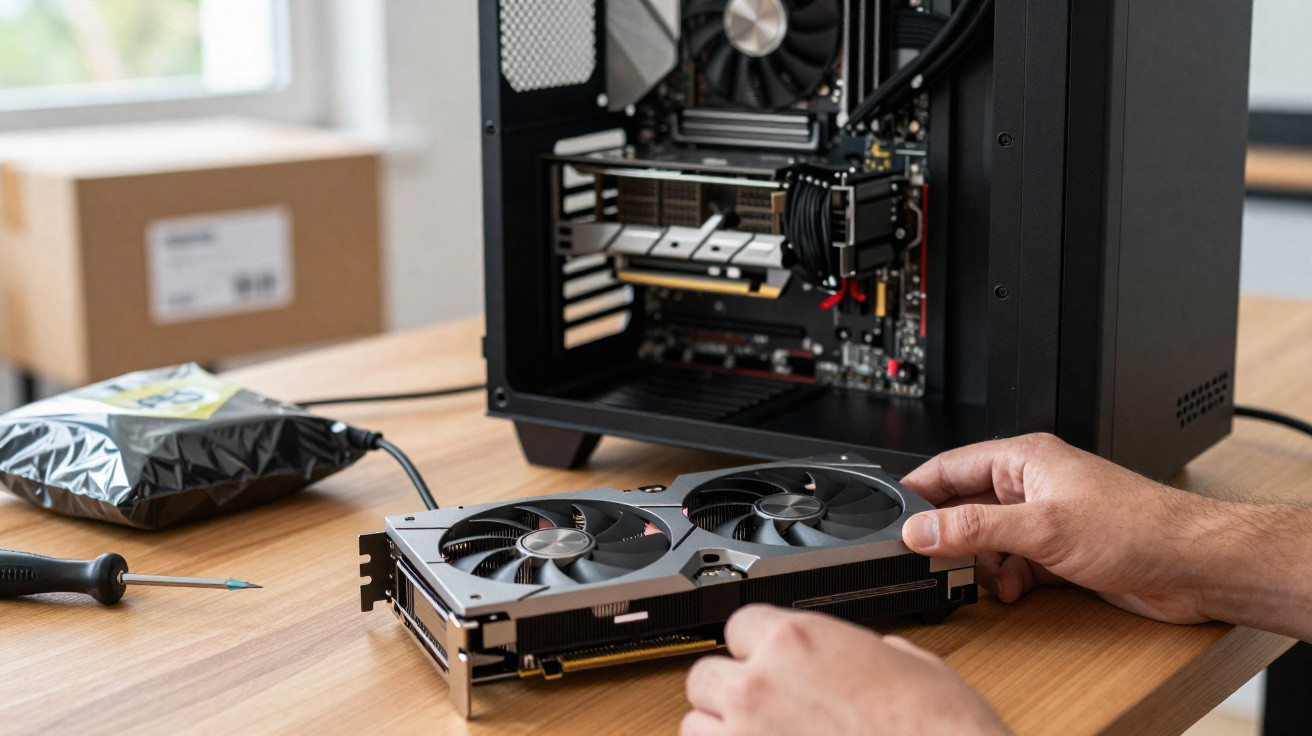
A desktop PC arriving home from repair with its graphics card loose inside the case is not a minor finishing flaw. Modern graphics cards can be heavy, and they are not designed to hang from power leads or knock against the motherboard during a courier journey.
The essential rule is simple: do not switch it on straight away. Photograph the condition, keep all packaging and tell the repairer what you have found before moving or refitting anything. A repair is only complete when the PC is securely reassembled, tested and packed safely for transport.
A loose graphics card can put strain on the motherboard slot, power connectors, cables and the card itself.
Why a loose graphics card matters
A graphics card should sit fully in its PCIe slot and be secured to the rear of the case with the appropriate screws. Larger cards may also have a support bracket or anti-sag stand. Its power cables should be connected securely, without being pulled tight, sharply bent at the plug or trapped by the side panel.
If the card has come loose, it may have moved enough during transit to cause damage. Possible issues include:
- Damage to the PCIe connector on the card or the motherboard slot.
- Bent rear expansion-slot brackets or case metalwork.
- Power connectors pulled partly out of place.
- Damage to fans, the cooler or circuit board after contact with other components.
- Cables pinched, stretched or damaged by sharp edges.
The computer may still boot, but that does not prove it is undamaged. Black screens, display glitches, crashes or boot problems may only appear when the PC is warm or under load.
What to do before turning it on
Do not reconnect everything and hope for the best. If the case is dented or a component is visibly unsecured, make a clear record first. This may be useful if the PC needs to go back to the repairer or if you need to raise the matter with a courier, retailer or insurer.
1. Photograph the condition as received
Take clear photos and a short video showing:
- The unopened outer box, including crushed corners, tears or punctures.
- Shipping labels and tracking details, with personal details covered where appropriate.
- Any internal packing before you move it.
- The graphics card’s position, its cables and any bent metalwork.
- The motherboard area, PCIe slot and rear mounting points.
- Loose screws, fragments or marks inside the case.
Keep the box, inserts, foam and protective bags until the matter is resolved. They may help establish whether the damage happened in transit or before dispatch.
2. Tell the repairer before rebuilding it
It is tempting to reseat the card, tidy the cables and carry on. But if you rebuild the PC before notifying the business, it may be harder to show how it arrived.
Contact the repairer in writing. Give a brief factual description, attach photographs and ask how they want to proceed. If they ask you to refit the card for testing, keep their instruction and record what you do.
3. Look for immediate safety concerns
With the PC switched off at the wall and unplugged, look for cracked boards, damaged plugs, exposed wires, melted plastic or a burnt smell. Do not power it on if the card is hanging from its cables, the case is badly distorted or you can see obvious damage.
Never open the power supply unit. It can contain components that remain hazardous even after it has been unplugged. A suspected damaged PSU should be checked by a competent technician.
If you are comfortable inspecting the hardware
Only go further if you are used to working inside PCs and the repairer has agreed you should do so. If the machine is covered by a repair warranty, unapproved work could complicate a later claim.
A cautious inspection routine
- Switch off at the wall and unplug the PC. Leave it disconnected while you inspect it.
- Put the case on a stable, clear table. Avoid working on carpet if possible, and use sensible anti-static precautions.
- Support the graphics card with one hand. Do not allow its weight to rest on the PCIe slot while you inspect it.
- Check the slot and retaining clip. Look for an intact clip and any obvious cracks, scratches or damage around the card’s connector.
- Check the rear mounting points. The card should line up cleanly with the expansion slots and be held by the correct screws.
- Inspect the power leads. Connectors should be fully seated, with no melted plastic, broken pins or severe bends immediately next to the plug.
If anything looks damaged or misaligned, stop there. An established local PC repair shop can inspect the machine and, where needed, provide a written assessment.
How a gaming PC should be packed for transport
There are two sensible approaches, depending on the graphics card’s size and weight.
For a lighter card, a repairer may leave it installed and use purpose-made internal transit support to prevent movement. Any internal packing should be suitable for electronics, fitted carefully and clearly identified for removal before the PC is powered on.
For a large, heavy graphics card, removing it can be the safer option. It should not, however, be left loose inside the case. A careful approach is to:
- Remove the card and place it in an anti-static bag.
- Put it in a padded box that prevents it moving about.
- Protect the connectors and cooler from knocks.
- Pack it separately within the main shipment, or send it in a suitably protected parcel.
- Tell the customer clearly if the card needs reinstalling, or arrange for it to be fitted.
The PC case itself should be packed in a strong box with cushioning on every side. Original manufacturer packaging is often the best choice for a large desktop tower.
Removing a heavy GPU for shipping can be sensible. Leaving it loose in the case is not a substitute for proper packaging.
Questions to ask before booking a repair
Not every repair service handles enthusiast PC hardware in the same way. Before handing over a gaming PC, ask practical questions such as:
- Will you test it with the same graphics card and memory configuration?
- Do you record the PC’s serial number and installed components?
- How will you package a heavy graphics card for return delivery?
- Will you contact me before replacing parts or reinstalling Windows?
- Is diagnostic work charged separately from repairs?
- What warranty applies to the work and replacement parts?
- Can you provide a written report of the fault found and work completed?
Back up important files before sending the PC away whenever possible. A technician may need to reset settings or reinstall software during diagnosis, so a repair booking should never be treated as a backup plan.
Common mistakes that make disputes harder
A returned PC in poor condition is frustrating, but a few actions can make a dispute more difficult or cause further damage.
- Throwing away the packaging immediately. Keep it until the issue is settled.
- Rebuilding the PC before taking pictures. Record the condition first.
- Posting an angry public review before contacting the business. Start with a factual written complaint and give the firm an opportunity to respond.
- Running demanding games immediately. Inspect the hardware first and only test it if it appears safe to do so.
- Assuming a successful boot means all is well. Watch for crashes, display drop-outs, unusual fan noise and overheating.
- Letting the card hang from its cables. Support it before moving the case.
- Using loose household bubble wrap inside the case. It can shift during delivery and must never be left inside while the PC is running. Use only suitable electronics transit materials.
Raising the issue with the repairer
Write to the repairer promptly and stick to the facts: when the PC arrived, what was loose or damaged, whether it has been powered on and what outcome you want. Ask whether they will arrange collection, inspection, repair and safe return without extra cost.
If an insurer arranged the work, send the same evidence to the claims handler and keep a timeline of emails, calls, collection dates and tracking numbers. When you pay a UK trader directly, services must generally be carried out with reasonable care and skill under the Consumer Rights Act 2015. What happens next will depend on the agreement and circumstances, so keep communication in writing and seek independent consumer advice if the business will not engage.
Citizens Advice can explain consumer options, and your card provider may have its own process for eligible payments. Unless there is an immediate safety concern, avoid arranging third-party repairs before the original repairer has had a reasonable chance to inspect the issue.
A safer plan for the next repair
Before a gaming PC leaves your home, photograph the internals, back up your files, discuss shipping arrangements for heavy components and get the scope of work in writing.
When it comes back, inspect first and power on second. A proper repair return should be secure, cleanly reassembled and ready to use - not leave you wondering whether the journey home has created the next fault.
















Comments
No comments yet. Be the first to comment!
Leave a Comment